
A teleprompter script contains two kinds of text: the words you plan to say and the directions that help you deliver them. When those two layers look the same, it is easy to read a direction out loud, miss an important pause, or lose your place.
The solution is simple: keep cues short, put them in a consistent bracket style, and give important actions their own line. This guide shows a practical format you can reuse for short videos, tutorials, presentations, and longer recordings.
What a teleprompter cue is
A cue is a short, non-spoken direction inside your script. It can remind you to pause, change tone, look at the camera, show an object, or move to the next visual.
Useful cues include:
[pause]for a deliberate beat;[smile]for a change in expression;[slower]before a dense or important sentence;[look at camera]before a direct statement;[show product]when a visual action must happen.
A cue should guide the performance without becoming a second script. If it takes several seconds to understand, it is probably too long.
Use one consistent bracket style
Choose one bracket style and use it throughout the script. Square brackets are easy to scan because they look different from normal punctuation:
[pause]
[warm tone]
[point to screen]
Avoid switching between brackets, parentheses, emoji, all caps, and inline notes unless each style has a specific meaning. Consistency lets your eyes recognize a direction before your brain starts reading it as dialogue.
Before formatting a long script, define a tiny cue legend. For example:
- square brackets for performance and production actions;
- normal punctuation for spoken pauses;
- bold or capitalization only when the exact emphasis changes meaning.
Put the legend in production notes, not at the top of the prompting script. The speaker should learn the small system during rehearsal rather than process an instruction manual while recording.
Keep each cue short and actionable
Good cues tell you what to do immediately. Prefer one or two clear words when possible:
[pause]instead of[stop here for a moment so the audience can think];[slower]instead of[remember that this next section is complicated];[show chart]instead of[move the chart graphic onto the screen now].
Long explanations belong in production notes, not in the reading area. The teleprompter should preserve your flow, not give you another paragraph to process.
Separate spoken lines from important actions
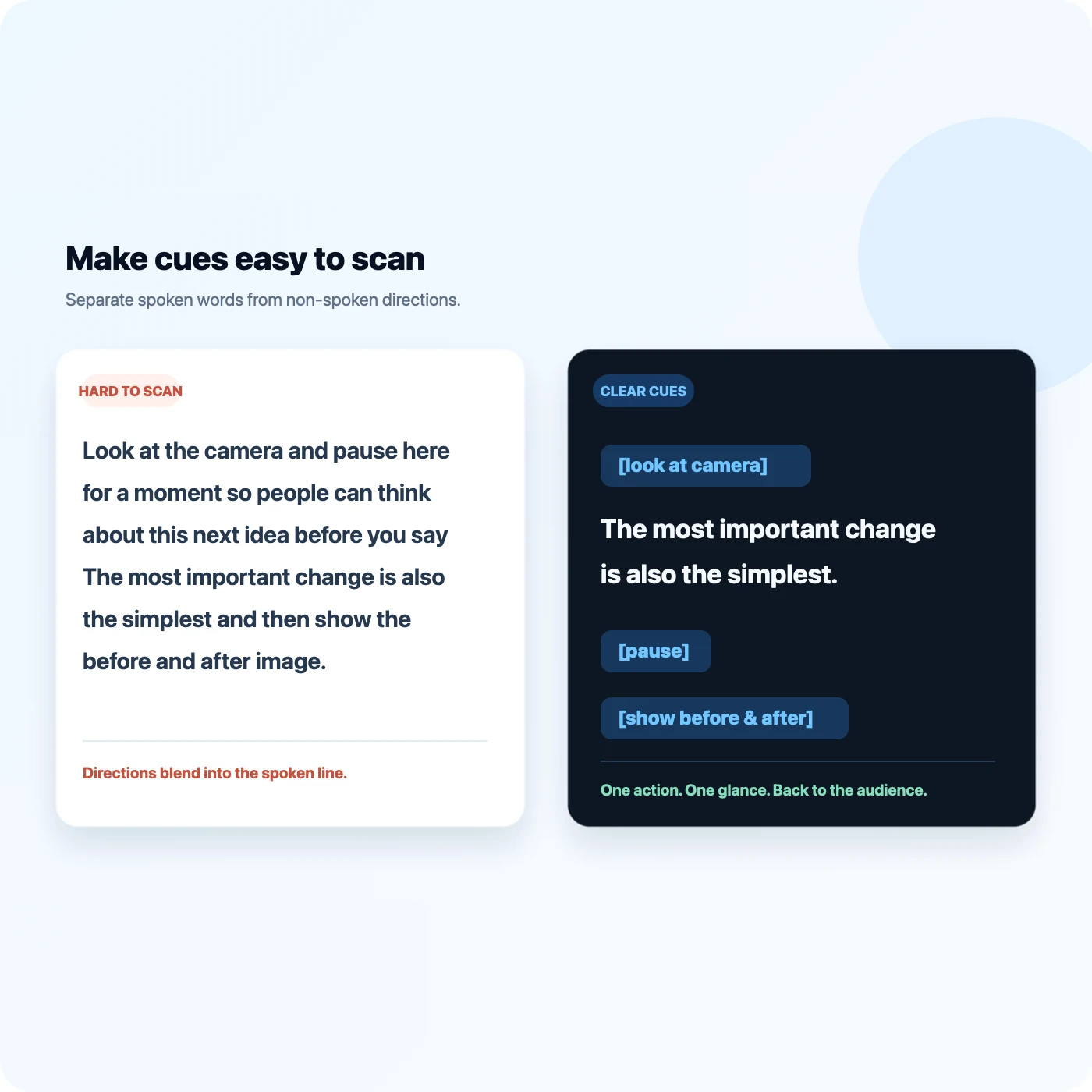
Small cues can sit before a sentence. Larger actions work better on their own line.
For example:
[look at camera]
The most important change is also the simplest.
[show before-and-after image]
Here is what the script looked like before we cleaned it up.
This layout makes the action visible early and keeps it away from the words you need to say. Add a blank line around major transitions when you want more breathing room.
Separate three layers during editing:
- Spoken copy: every word the audience should hear.
- Performance cues: pauses, tone, eye line, pronunciation, and emphasis.
- Production cues: slide changes, demonstrations, camera moves, and graphics.
If a production cue is long, move its explanation to a shot list and leave only a short trigger in the prompt. For example, keep [show comparison] in the script and store the exact filenames, timing, and animation notes elsewhere.
Place cues before the moment they control
Put a cue just before the sentence or action it affects. A cue placed at the end of a long paragraph often appears too late to help.
Use this:
[slower] This number deserves a closer look.
Instead of this:
This number deserves a closer look. [say that more slowly]
For an action that needs preparation, give yourself one full line of warning. This is especially useful for demonstrations, camera changes, screen recordings, and product shots.
Format emphasis without turning the script into a poster
Too many colors, capital letters, symbols, and highlights compete for attention. Reserve emphasis for words that genuinely change the meaning of the sentence.
A practical hierarchy is:
- normal text for spoken lines;
- short brackets for non-spoken directions;
- one consistent emphasis style for a key word or phrase;
- blank lines for major transitions.
If every line is emphasized, nothing feels important.
Test the cues in a real prompting view
Do not judge formatting only in a document editor. Open the script in a teleprompter, use the font size and width you expect to record with, and read one complete section aloud.
Check whether:
- each cue is recognizable at a glance;
- a cue wraps onto too many lines;
- the next spoken sentence remains visible;
- the cue appears early enough to change your delivery;
- you can resume cleanly after a pause or action.
You can use the free ScrollVox Online Teleprompter for a quick fixed-speed rehearsal in your browser. It requires no account and keeps the script in your browser. For voice-following delivery, use ScrollVox, available on the App Store.
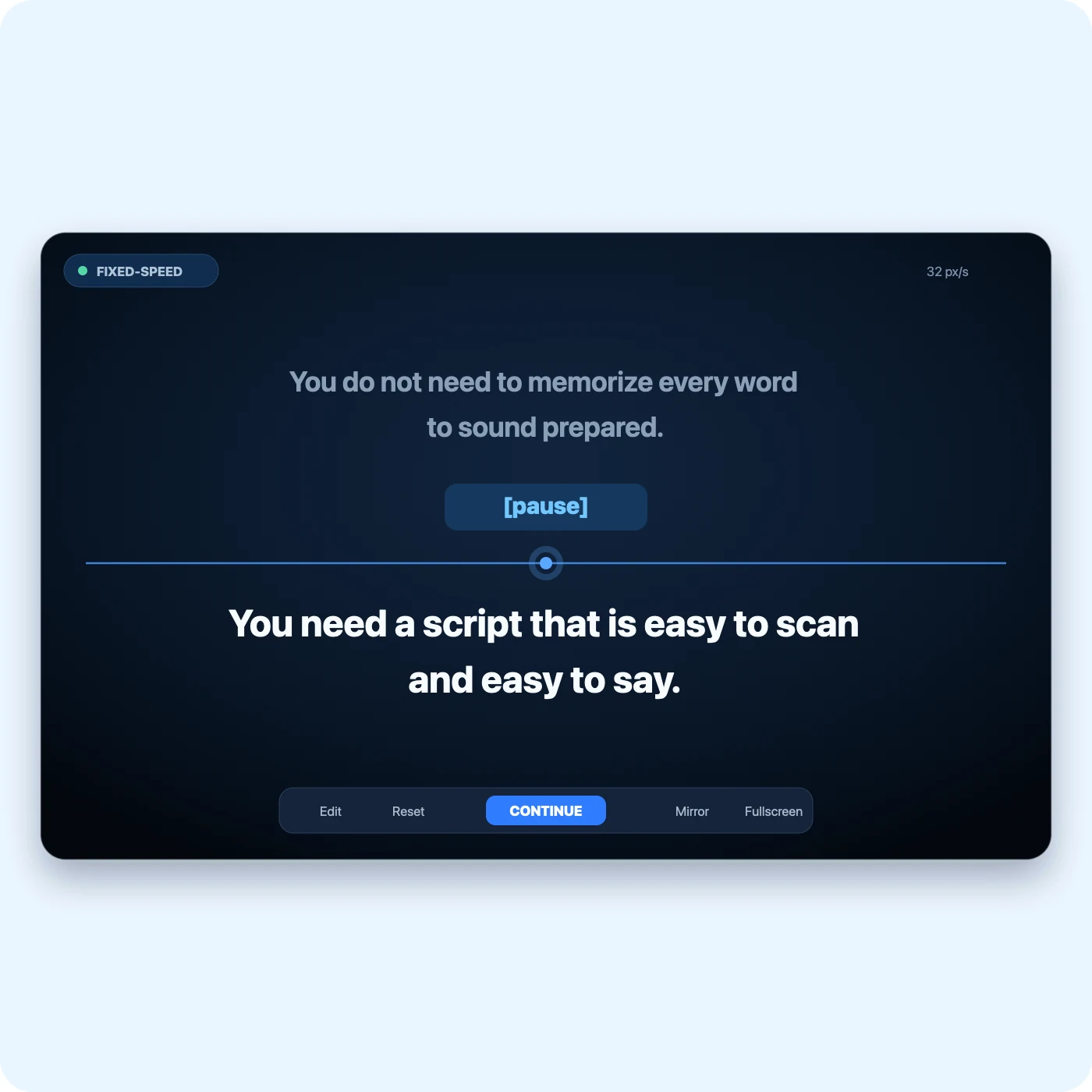
Use two rehearsal passes. In the first pass, stop whenever a cue is late, ambiguous, or easy to read aloud. Edit the cue. In the second pass, do not stop; mark only the places where the cue still interrupts delivery. A cue system is ready when it works at recording speed, not merely when it looks organized in a document.
How bracketed cues work with ScrollVox AI Skip
Current ScrollVox releases can detect cues inside supported brackets such as (), [], {}, (), and 【】. The cue stays visible in the teleprompter while AI recognition can skip the cue text instead of waiting for you to say it.
Before saving or starting, review the detected cues. Remove the skip treatment from anything that should actually be spoken. Brackets are a useful convention, but the final check is still yours—especially when a product name, pronunciation note, or quoted phrase contains brackets for another reason.
A reusable cue-formatted script
Use this short example as a starting point:
[look at camera]
You do not need to memorize every word to sound prepared.
[pause]
You need a script that is easy to scan and easy to say.
[show example]
Keep directions short, bracketed, and separate from the spoken line.
[slower]
Then rehearse the exact layout before you record.
Replace the directions with cues that match your own recording. Do not add an action simply because a template includes it.
A worked tutorial example
Here is a short before version:
Today I will show you the setting we discussed (remember to slow down here) and then I need to open the settings screen and point to the width control before explaining why it matters.
The sentence mixes dialogue, performance, and production. A prompt-ready version is:
Today I will show you the setting that makes the biggest difference.
[open settings]
[slower] Reduce the text width until your eyes no longer travel across the screen.
[show width control]
This setting matters because the viewer can see repeated eye movement.
The revised version creates a clean action point, places the speed cue before the important sentence, and gives the visual its own trigger. It also produces better edit points if the demonstration needs another take.
Common cue failures and fixes
- You read cues aloud: shorten them, place them on separate lines, and remove sentence-like wording.
- The action starts late: move the cue one line earlier so you can prepare before speaking.
- Too much text is highlighted: keep one emphasis system and remove decorative formatting.
- The prompt becomes a shot list: move technical detail to production notes and keep only triggers.
- Voice following waits for a cue: verify supported bracket detection and review AI Skip before starting.
- A spoken phrase is skipped: remove brackets from anything the audience must hear.
- Cues wrap across several lines: replace the explanation with a short verb and object.
Check the finished passage in the free online teleprompter, then estimate its runtime with the video script timer. If the cue layout changes your natural pace, time the prompted version rather than the clean dialogue alone.
Frequently asked questions
Should cues be written in the same language as the script?
Use whichever short terms the speaker recognizes instantly. A bilingual production may keep shared technical triggers such as [slide], but consistency inside one script matters more than the choice of language.
Should I put every pause in brackets?
No. Normal punctuation and paragraph breaks should carry ordinary rhythm. Use [pause] only when the beat is important enough that missing it would change the delivery or edit.
Can a cue include a full camera instruction?
It can, but it usually should not. Keep a short trigger in the prompt and put lens, framing, filename, and timing details in a separate shot list.
How many cue types should one script use?
Use the smallest set that supports the recording. If a speaker must remember a complex legend, the notation has become another performance problem.
How does cue formatting affect Voice Sync?
Clear spoken phrases around short, reviewed bracket cues make the intended return points easier to recognize. For the complete setup and recovery process, see How to Use Voice Sync.
Pre-recording cue checklist
- One bracket style is used consistently.
- Every cue is short enough to understand at a glance.
- Important actions have their own line.
- Cues appear before the words or actions they control.
- Spoken text is visually more prominent than production notes.
- The script has been tested in the actual prompting width.
- Detected AI Skip cues have been reviewed before recording.
- Long production details live in a separate shot list.
- The complete script has passed one uninterrupted rehearsal.
Good cue formatting should disappear into the performance. You notice the direction, make the adjustment, and return your attention to the audience without breaking the sentence.
Ready to record?