
Zoom
Hosts, sales teams, trainers, founders, and managers leading Zoom meetings, demos, webinars, and recorded updates.
USE CASE
Keep private prompts near the camera while presenting, sharing a window, recording, and recovering from questions in Zoom, Google Meet, or Microsoft Teams.
Built for this workflow
Keep private speaking cues close to the camera across meetings, demonstrations, training, and recorded updates.
Hosts, sales teams, trainers, founders, and managers leading Zoom meetings, demos, webinars, and recorded updates.
Teachers, consultants, recruiters, sales teams, and managers presenting or demonstrating work in Google Meet.
Business teams, trainers, sales presenters, and leaders running Teams meetings, briefings, demos, and webinars.
A practical script structure
Place the prompt on an iPhone or iPad close to the webcam. In Zoom, choose the narrowest sharing option that contains the content, then run a private test meeting and verify exactly what a participant and the recording can see.
Common mistakes to avoid
Never assume a prompt is hidden because it looks separate on your screen. Sharing an entire screen can expose windows, notifications, and notes that a single-window share would avoid.
Use the prompt on a near-camera iPhone or iPad. In Meet, deliberately choose a tab, a window, or the entire screen; test audio sharing when a clip is part of the presentation and keep private notes outside the shared surface.
Common mistakes to avoid
Do not begin sharing before checking the selected surface. Presenting the whole screen creates a different privacy risk from sharing one tab or window.
Keep the prompt on a separate near-camera device. Select the specific Teams sharing surface and presenter layout needed for the session, then inspect the attendee view and recording before the real meeting.
Common mistakes to avoid
Do not treat a presenter layout as proof that notes are private. Whole-screen sharing, notifications, and mobile screen sharing can reveal content outside the intended presentation.
Choose how the script moves
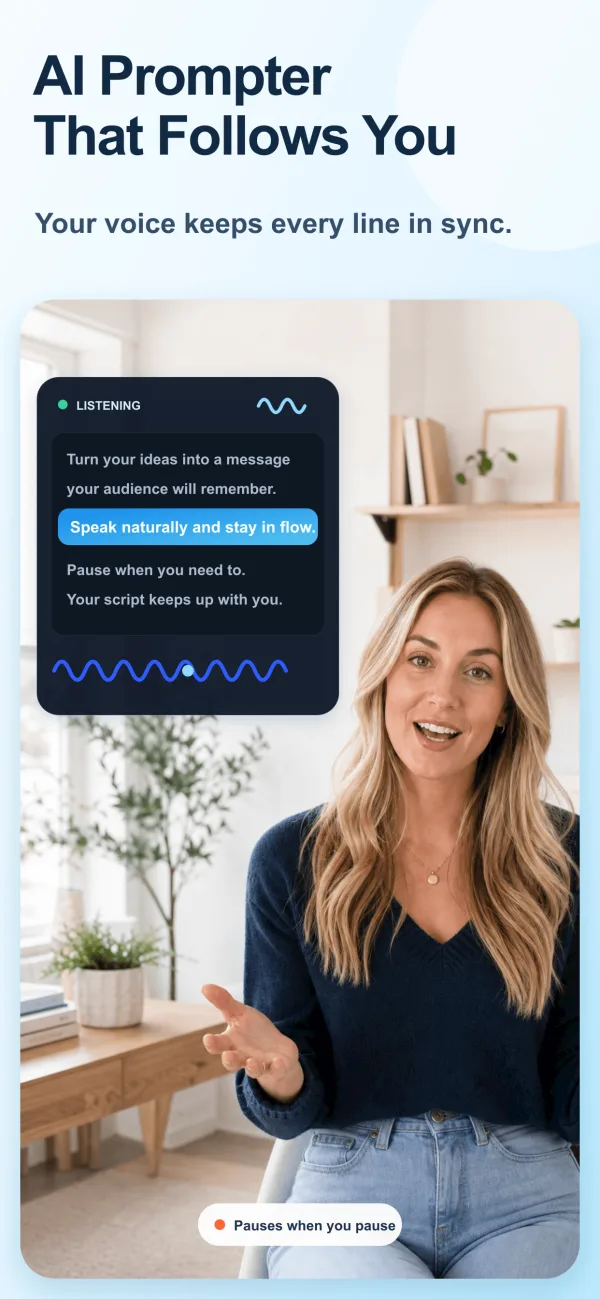
Voice Control is useful when you need to pause, emphasize a point, or adapt a sentence without chasing a fixed scroll speed.
Fixed speed is useful for rehearsed intros, sponsor reads, or segments with a defined duration. Rehearse once and leave room for pauses.
Verify the complete platform workflow
FREE TOOL
Calculate script duration from word count and speaking pace.
Recording checklist
Frequently asked questions
No. Use the script as a delivery guide and rehearse the opening, transitions, and closing so your eyes can return naturally to the lens.
Use Voice Control for flexible delivery. Use fixed speed when the section has predictable timing and you have rehearsed it.
Platform names are used only to describe recording workflows. ScrollVox is not affiliated with these platforms.